VectorLabel is in beta. These pages describe the current beta builds, which are pre-release software: what they say may change before the first production release, and parts marked Beta are new or still being tested. Downloading the beta needs an account with VectorLabel beta access (ask for it here). Tell us if something here is wrong.
The box needs a network with internet access: jobs reach it through the VectorLabel service on this website. Everything here is under Settings › Network on the box.
Network status
Settings › Network opens with the box's status: the connection (Ethernet, or Wi-Fi and the network's name), IP address, subnet, gateway, DNS servers, MAC address and, on Wi-Fi, the signal. The last two rows say whether the box can reach the internet and the VectorLabel service. The service is checked every 30 seconds; while it says not reachable, jobs can't reach the box.
Below the status are Ethernet and Wi-Fi.
Ethernet
Plug a network cable into the box. On most networks there is nothing else to set up: the box gets its address automatically (DHCP). Settings › Network › Ethernet shows Cable connected or No cable, and the port's MAC address, and lets you set a manual address.
Wi-Fi
The box joins WPA2 and WPA3 Personal networks and open networks, on 2.4 and 5 GHz. Enterprise (802.1X) Wi-Fi and networks with a sign-in page (captive portals) aren't supported. An enterprise network is listed as Not supported (enterprise) and can't be chosen.
Joining a network
- Open Settings › Network › Wi-Fi. The box looks for networks; tap the round arrow to look again.
- Tap the network. For a secured one, type its password on the screen's keyboard (the eye shows what you typed) and tap Join. An open network is joined straight away.
- When it's joined, the network is marked Connected, with a tick.
The box remembers the network and joins it again by itself. Wi-Fi passwords are 8 to 63 characters.
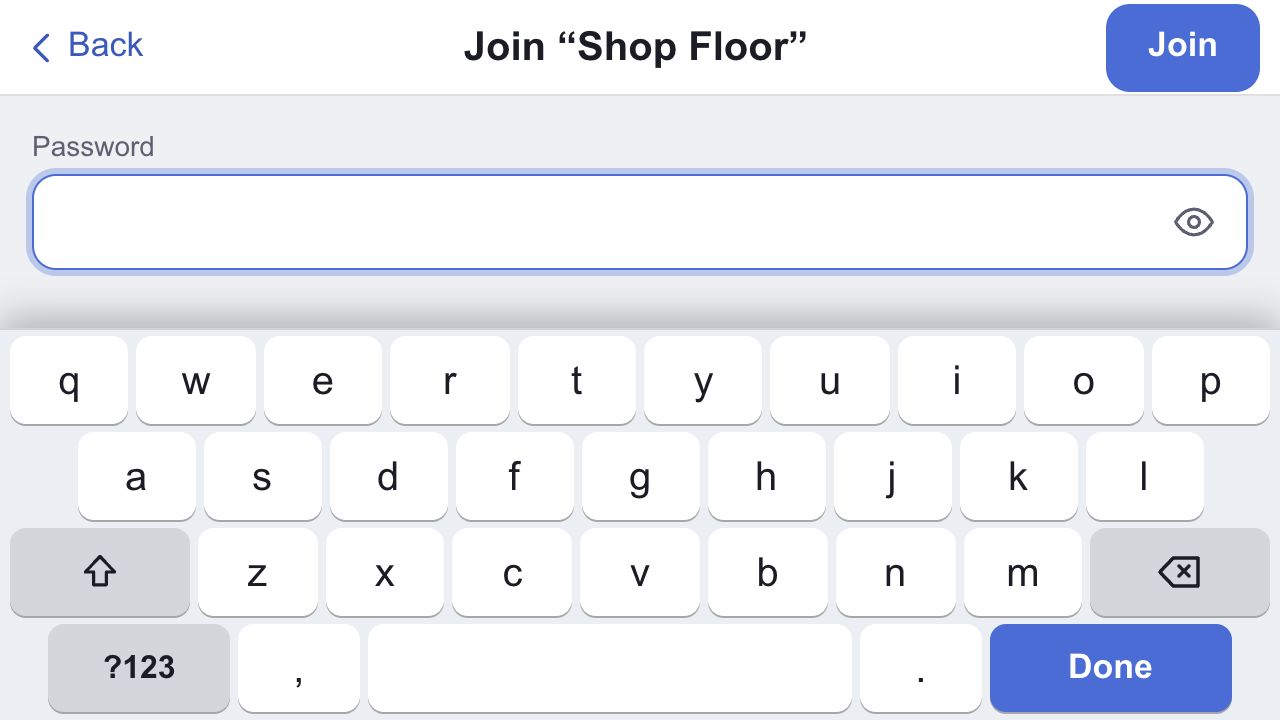
A hidden network
Tap Other network… at the end of the list. Type the Network name exactly, choose its Security (WPA2, WPA3 or None), type the password and tap Join.
Forgetting a network
In the Wi-Fi list, tap the network (it shows as Connected or Saved), then Forget this network and Forget. The box won't join it again until you enter its password.
Forgetting a network is not yet confirmed on a real box.
A manual address
For a network without DHCP, or to keep the box on one address, set the address by hand. For Ethernet, open Settings › Network › Ethernet; for Wi-Fi, tap the network in the Wi-Fi list. Each Wi-Fi network keeps its own setting.
- Under Addressing, choose Manual. (Automatic (DHCP) goes back.)
- Fill in IP address, Subnet prefix or mask (such as 24 or 255.255.255.0), Gateway and DNS server 1. DNS server 2 is optional.
- Tap Save.
The box checks the fields before saving: the gateway has to be on the same network as the address and can't be the box's own address, and the address can't be the network's own address or its broadcast address.
A manual address is not yet confirmed on a real box.
Saved networks
Coming in a later build, and not yet confirmed on a real box. Settings › Network › Saved networks lists every Wi-Fi network the box has saved, in range or not. Tap one to see its security and:
- Join automatically: when this network is in range. Turning it off keeps the network saved on this box but stops the box joining it by itself. It applies to this box only.
- Forget this network: removes it from the box.
Sharing Wi-Fi networks with your account
The website's side is live; the box's side comes in its beta.5 firmware, not yet released. With sharing on, every network saved on any of your print servers, with its password, is kept in your Cooper Audio Services account and added to all your print servers that share. A box moved between sites then joins any network one of them knows. It's off unless you turn it on, and each box has its own switch.
Turning it on
- When you add the box: tick Sync Wi-Fi networks with your account? on the add page.
- On the box: Settings › Network › Saved networks, turn on Share with my account, then tap Share. The networks saved on the box go to your account, and your account's networks are added to the box. The switch is there only while the box is on an account.
- On this website: on the box's own page, opened from its name on your Devices page, turn on Share Wi-Fi networks with your account.
Turning it off keeps the networks the box already has; it just stops sharing.
Managing the shared networks
- Join automatically (on the box) and Auto-connect (on the box's page on the website) are the same choice, for that box only.
- Forgetting a shared network on a box removes it from your account and from all your print servers that share. To keep it on the others, turn off Join automatically on this box instead.
- The account's Wi-Fi networks page on this website lists the shared networks, with their security, whether they are hidden, and when and where each was last changed. You can add a network, edit one, see its password with Show password, or delete one. Deleting removes it from all your print servers that sync; a print server that doesn't sync keeps its own copy.
- An account keeps up to 100 networks.