VectorLabel is in beta. These pages describe the current beta builds, which are pre-release software: what they say may change before the first production release, and parts marked Beta are new or still being tested. Downloading the beta needs an account with VectorLabel beta access (ask for it here). Tell us if something here is wrong.
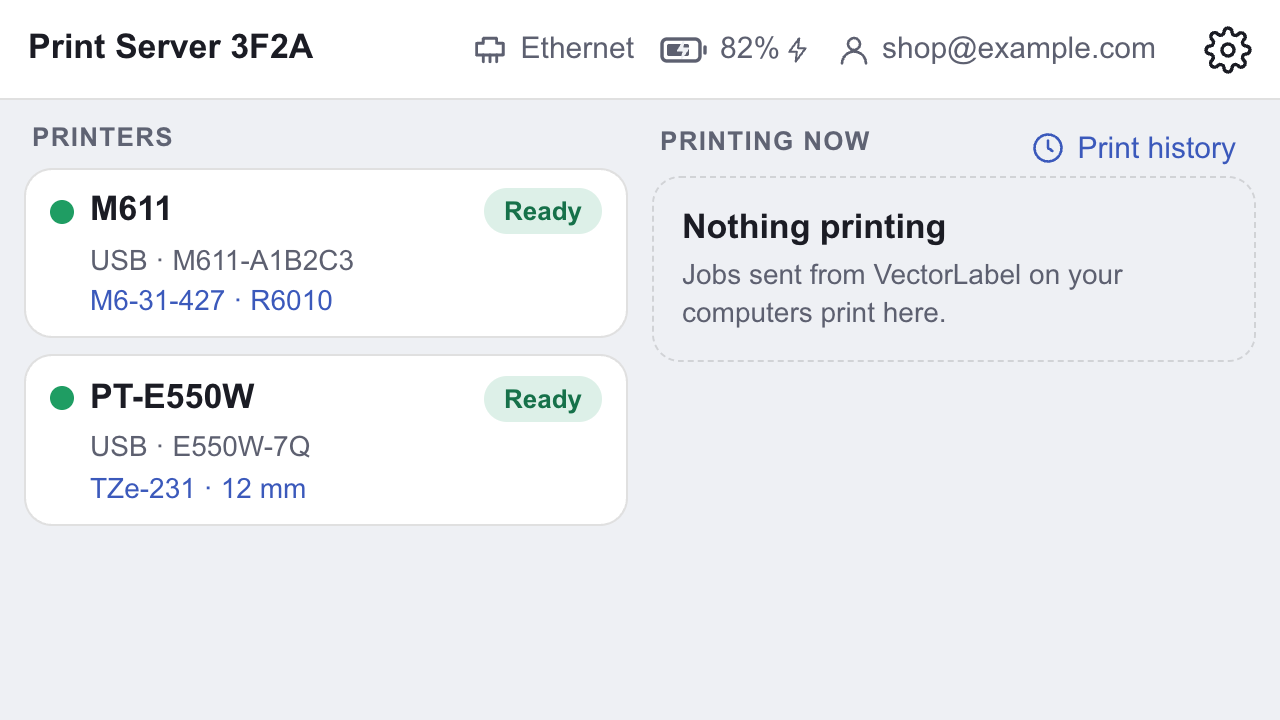
Once the box is on your account, its touch screen opens on Home. Everything else is one tap away: Print history on Home, and the rest under the gear at the top right (see Print Server settings).
The top bar
From left to right:
- The box's name.
- The connection: Ethernet, Wi-Fi with its signal, or Offline.
- The internal battery's charge, with a lightning mark while it charges.
- The account the box is on, or Not added to an account.
- The gear, which opens Settings.
Home
Home has two columns.
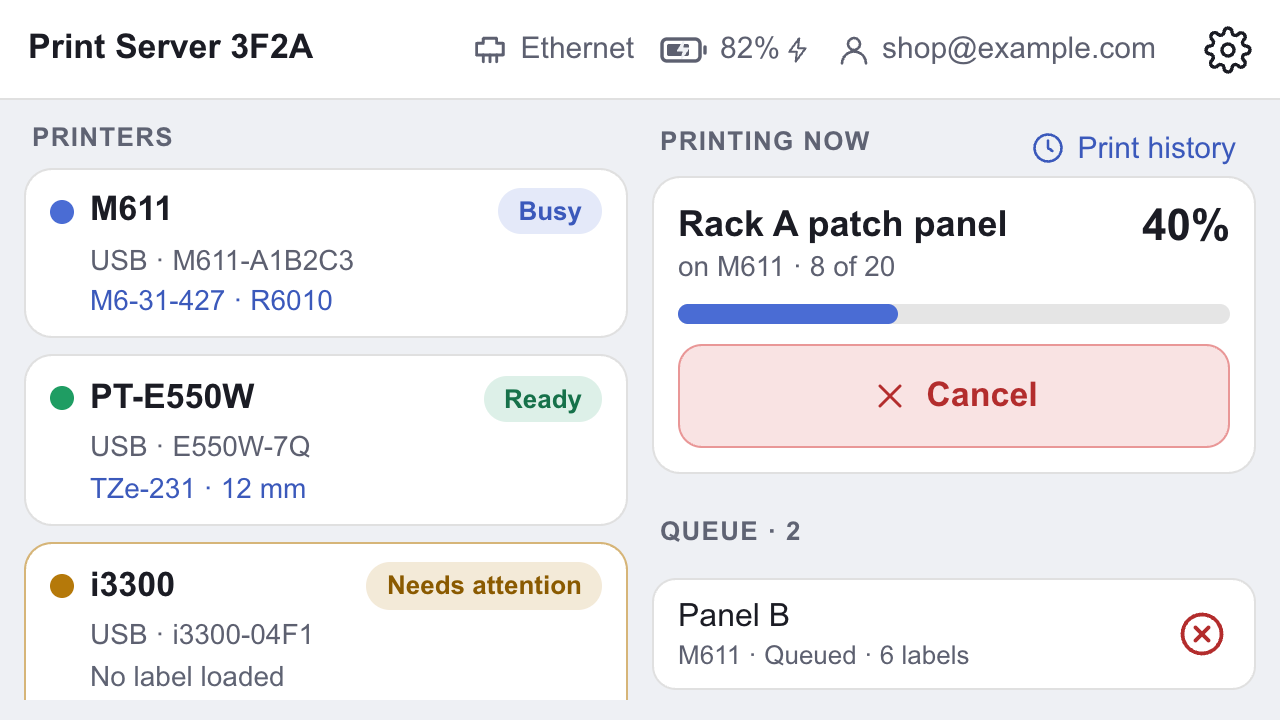
- Printers: one card for each printer plugged in, with its status (such as Ready, Busy or Needs attention), how it is connected, and the supply loaded in it, or No label loaded. A card that needs attention says why underneath.
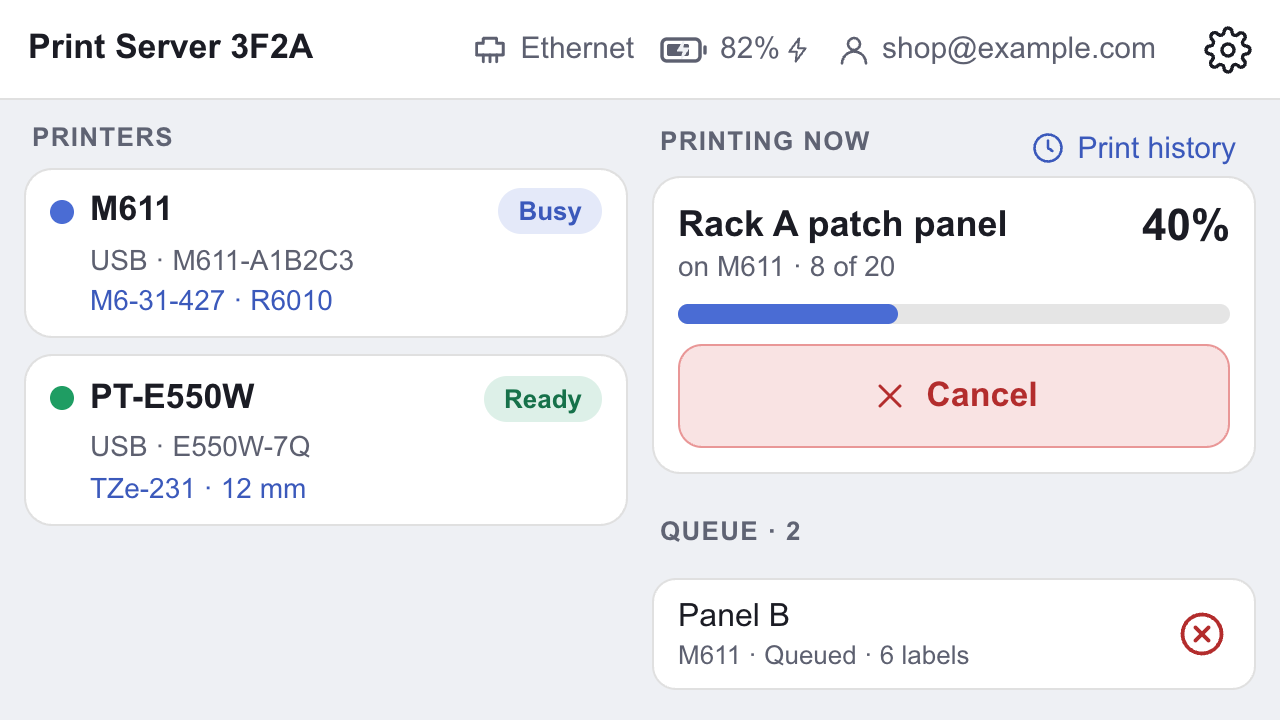
- Printing now: each job printing, with the printer it's on, how many labels have printed, a progress bar and a Cancel button. Under it, Queue lists the jobs waiting, with their printer and number of labels.
With nothing printing, the column says Nothing printing. With no printer plugged in, Home says Plug a printer into a USB port.
Cancelling a job
- A job that is printing: tap Cancel under it. The box asks first; labels that already printed are not affected. Tap Cancel print, or Keep printing to go back.
- A job in the queue: tap the ✕ beside it, then Cancel print. It is taken out of the queue and does not print.
A greyed-out button means the job can't be cancelled at that moment.
Cancelling from the screen is not yet confirmed on a real box.
Print history
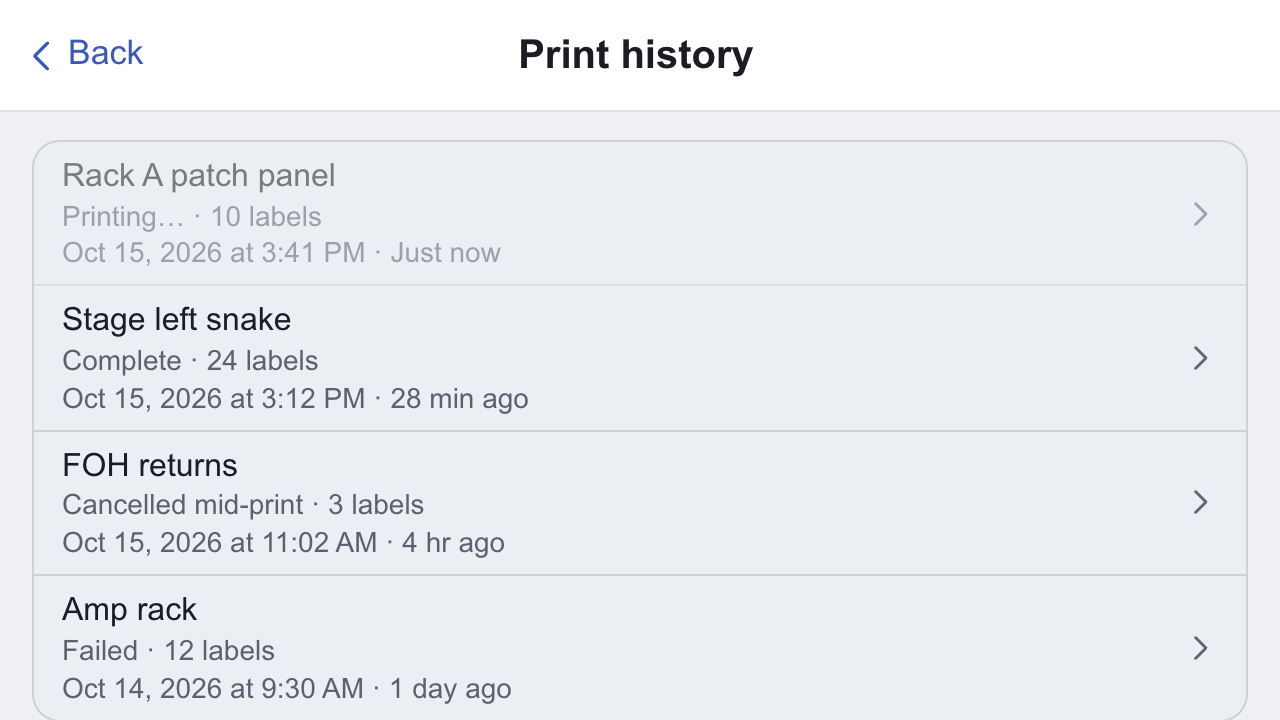
Tap Print history on Home (it's also in Settings). Each job the box has printed is listed, newest first, with how it ended (such as Complete, Cancelled mid-print or Failed), its number of labels and the date. If nothing has printed yet, the list says so.
Reprinting
- In Print history, tap the job. (A job still printing can't be opened.)
- For a job of more than one label, set From label and To label to print only some of them. They start as the whole job.
- Tap Reprint. Home shows the job printing.
The reprint prints on the same printer as before. A whole job prints with its copies; a range prints once. If the range is wrong, the box says which labels you can choose. If the box no longer has the job, it says This print is no longer in the history.
Reprinting a range of labels is not yet confirmed on a real box.
Warnings on Home
Home shows one banner at a time, the most urgent first:
- Not connected to a network. Jobs can't reach the box until it is. Tap the banner to open the network settings (see Print Server network).
- Battery low. On battery with 20% or less left. Plug in the power adapter.
- Terms changed. See When the terms change.
- Update … is available. Tap it to open Updates.
A problem with one printer shows on that printer's card instead.
When the terms change
When the Cooper Audio Services terms change, the box stays on your account and keeps printing. Home says the terms must be accepted on the website, naming the account. Sign in to this website as that account and accept them; the box checks every 5 minutes, and the banner goes by itself. If nobody accepts them, the box keeps printing for up to 32 days from its last successful check, then stops taking jobs until they are accepted. Updates wait for the terms too.
Checked with tests only: no real terms change has reached a box yet.
When the screen goes dark
The screen goes dark after a few minutes without a touch, as set in Settings › Box. The box keeps printing. Touch the screen to wake it; that touch only wakes it and presses nothing. A push of the power button also wakes it, and asks whether to shut down (see The power button).