VectorLabel is in beta. These pages describe the current beta builds, which are pre-release software: what they say may change before the first production release, and parts marked Beta are new or still being tested. Downloading the beta needs an account with VectorLabel beta access (ask for it here). Tell us if something here is wrong.
Tap the gear at the top right of Home to open Settings. Each row opens a screen of its own, and Back at the top left returns.
The Settings menu
- Network: Ethernet and Wi-Fi (see Print Server network).
- Box: the name, time zone and screen.
- Updates: the installed version and new ones.
- Account: the account the box is on.
- Print history: as on Home (see Print history).
- System: the version, serial number and IP address, and Restart.
A later build adds Owner to the menu (see Owner details).
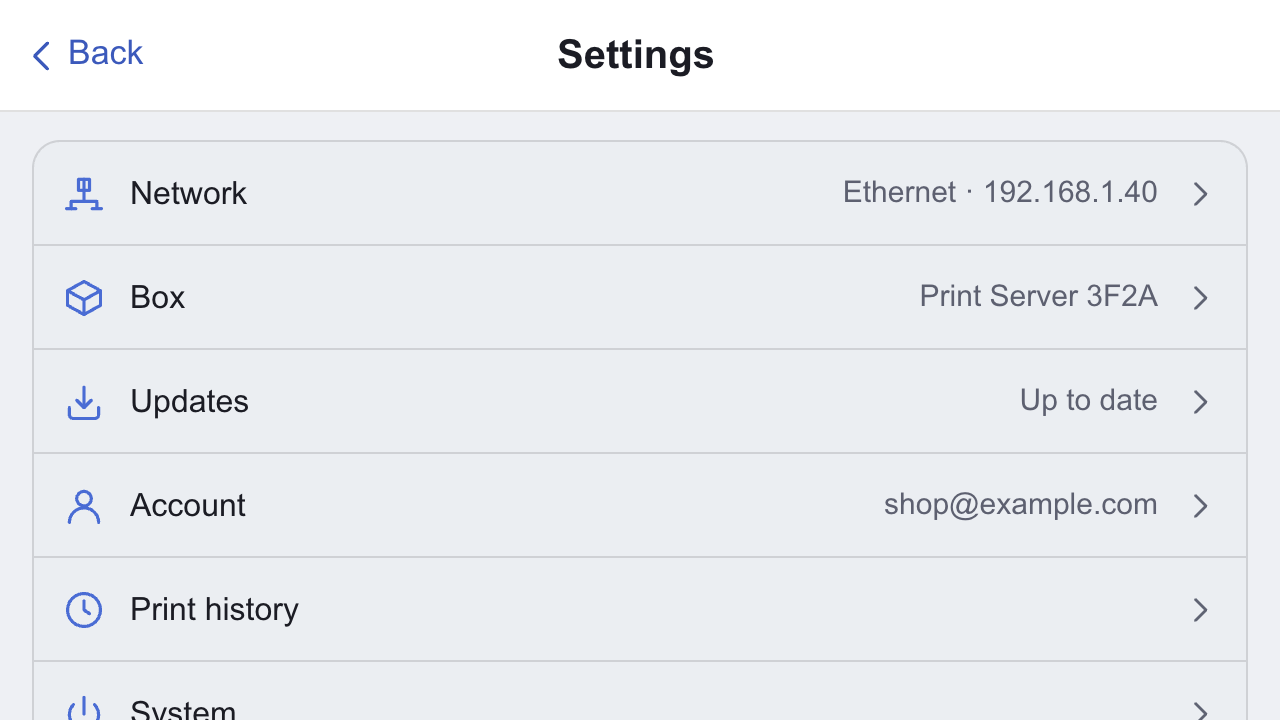
Box
- Name: shown in VectorLabel on your computers, and used as the box's name on the network. It starts as "Print Server" and four characters from its serial number. Use letters, numbers, spaces and hyphens, up to 63 characters, then tap Save. The new name also shows on your Devices page (not yet confirmed on a real box).
- Time zone: search for your city or region and tap it. The time itself is set from the internet; it can't be set by hand.
- Screen brightness: from 10% to 100%. It starts at 80%.
- Appearance: Light (the default) or Dark. The screen changes at once.
- Screen sleep: the screen goes dark after 2 min, 5 min (the default), 15 min or 1 hour without a touch, or Never. Touch it to wake it.
- Turn off when idle: see Turning off when idle.
The Appearance setting is not yet confirmed on a real box.
Turning off when idle
On battery, the box can turn itself off after a time with nothing printing or queued and no touch: 15 min, 30 min, 1 hour, 2 hours, Never (the default) or Custom, from 1 to 1440 minutes. Plugged in, it stays on. A minute before, the screen counts down with Keep on; any touch, or a push of the power button, starts the wait again. Press the power button to turn the box on again.
Not yet confirmed on a real box.
Owner details and the start-up screen
Coming in the box's beta.5 firmware, not yet released. The website already keeps them and shows them on the box's page.
Owner details mark the box as yours, so a lost box can find its way back. They show on the box's start-up screen every time it starts.
- Open Settings › Owner.
- Fill in Name or company, and a Phone, an Email or both. Note (optional) takes up to 200 characters.
- Tap Save. The box asks first, because the details can't be changed or removed on the box afterwards, even by a factory reset. Tap Save again.
After that, Settings › Owner shows them read-only. They stay with the box when it moves to another account. To change them, contact us: Cooper Audio Software can clear them, and you can then enter new ones on the box. On this website, the box's own page (opened from its name on your Devices page) shows them read-only.
The start-up screen shows the VectorLabel mark, the product name, the owner details when the box has them, and a sliding bar while the box starts. The bar shows that the box is working, not how far along it is. The start-up screen has been seen on a test box, without owner details.
Updates
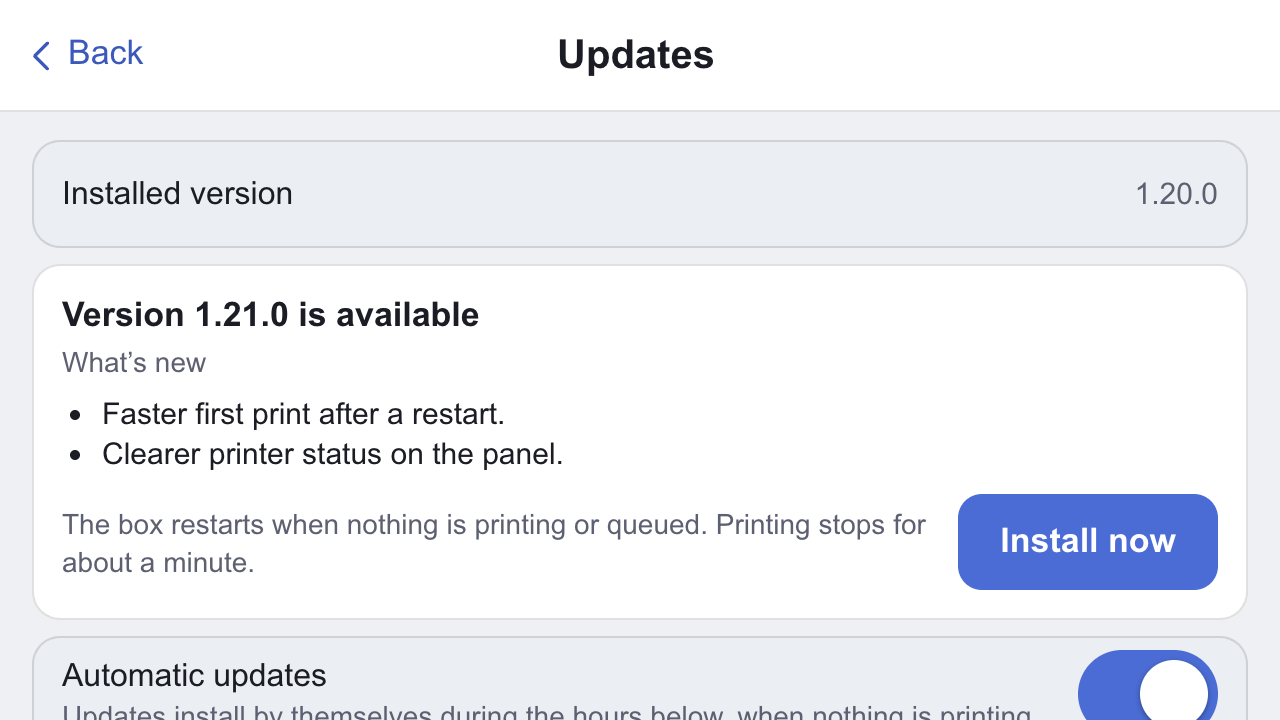
Settings › Updates shows the Installed version. When a new one is available, it says so with what's new and Install now; Home shows a banner too.
- An update downloads, is checked, then waits until nothing is printing or queued. The box restarts on the new version, and printing stops for about a minute. Afterwards a message says the update is installed.
- If the new version doesn't start properly within a minute, the box goes back to the version it had and says so.
- Automatic updates (on by default) install updates by themselves during the Update hours, when nothing is printing: 12–2 am, 2–4 am (the default), 4–6 am or 10 pm–12 am.
- Check now asks for an update straight away. The screen says when it last checked and what it found.
Beta or production updates
If your account has VectorLabel beta access, the box asks once whether to Install betas, and Settings › Updates has a Beta updates switch. Betas arrive earlier and can have problems. Turning the switch off asks first, then offers the newest production version, which can be older than the one installed. If the account loses beta access, the box takes production versions and says so.
One update has installed on a test box so far (1.20.0-beta.1 to 1.20.0-beta.2). Going back from a beta to production has not been tried on a real box.
Internal Battery
The box has a 72 Wh internal battery and charges over USB-C at up to 40 W. The top bar shows its charge, with a lightning mark while it charges. With the power adapter unplugged, the box runs on the battery; at 20% or less, Home asks you to plug it in. To save the battery when the box isn't in use, see Turning off when idle.
Running on the internal battery is not yet confirmed: on the test box, unplugging the adapter sometimes cut the power (see Known problems).
The power button
- To shut down: press the power button once. The screen asks Shut down the print server?; tap Shut down. When the screen goes dark, it's safe to unplug the power. The box doesn't print until it's turned on again.
- To turn it on: press the power button.
- To force it off: press and hold the power button. This cuts the power without shutting down, so use it only when the box doesn't respond.
Not yet confirmed on a real box: shutting down from the question, how long to hold the button (about 5 seconds is expected), and turning the box on with it.
System
Settings › System shows the box's name, version, serial number and IP address. Give the version and serial number when you report a problem.
Restart asks first, then restarts the box. Printing stops for about a minute, and queued jobs are kept.
Reset to factory settings is on this screen but not available yet: the box answers that it isn't. When it is, it will sign the box out of its account, forget its networks and settings, lose any queued jobs and start setup again. Owner details stay.
Restarting from this screen is not yet confirmed on a real box.
Account
Settings › Account shows the Cooper Audio Services account the box prints for. Jobs sent from VectorLabel on computers signed in to that account print on it.
Sign out of this box asks first, then takes the box off the account: it stops printing jobs from that account and goes back to setup, where you can add it again with a new code. If the box can't reach the website at that moment, it signs out anyway, and your Devices page drops it once the box is back online. See Moving it to another account.