RyCAD.AV is in beta. These pages describe the current beta builds, which are pre-release software: what they say may change before the first production release, and parts marked Beta are new or still being tested. Downloading the beta needs an account with RyCAD.AV beta access (ask for it here). Tell us if something here is wrong.
When you copy a device, RyCAD.AV asks what the copy is. It can be another view of the same device, drawn on a different sheet or in a different section, or it can be a new device with a name of its own.
One device can be drawn in several places. An amplifier's line inputs can sit on the audio sheet while its network sockets sit on the network sheet, and it is still one device with one name, one row in the Device Listing and one set of labels. Each place it is drawn is a view. This page explains how copying decides between a new view and a new device, and how to work with a device that has several views.
To copy devices
- Select one or more device views.
- Copy them the way you copy anything in AutoCAD: the Copy button on AutoCAD's own Home tab (or type
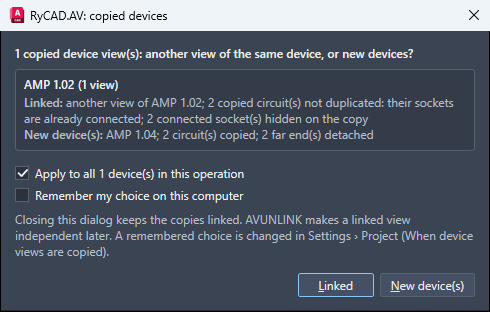
COPY), Ctrl+C then Ctrl+V, or Ctrl+drag.ARRAY, andMIRRORwhen it keeps the original, count as copies too. - Place the copy. When the command ends, a window titled RyCAD.AV: copied devices opens and asks, for example, 1 copied device view(s): another view of the same device, or new devices?
- Click Linked for another view of the same device, or New device(s) for new devices.
With snap on (F9) the copies land on the project grid together, as a move would, and the command line says how many were nudged. With snap off they stay where you put them. Two pastes made before you answer are asked about together.
Linked or New device(s)
| Choice | What you get |
|---|---|
| Linked | Another view of the same device. There is no new device, no new circuit and no new label row. Sockets that are already wired on another view are hidden on the copy, and their circuits are not duplicated. The Inspector shows View 2 of 2. |
| New device(s) | New devices with names that count on (AMP 1.02 becomes AMP 1.03, using the next free name). The circuits between the copied devices are copied with them. If you copy several views of one device in one go, they become one new device with that many views. Circuits to devices that were not copied are copied too, with their far ends detached (see below). |
The window previews both outcomes for every copied device, in words, so you can see before you choose. For a copy of AMP 1.02, wired to two other devices, it reads like this:
- Linked: another view of AMP 1.02; 2 copied circuit(s) not duplicated…; 2 connected socket(s) hidden on the copy
- New device(s): AMP 1.04; 2 circuit(s) copied; 2 far end(s) detached (the example drawing already has an AMP 1.03)
If you choose New device(s) for a device that is wired to devices outside the copy, its circuits are copied, but the end that was on the other device is left detached: it is not connected to anything. Data › Check (or AVCHECK) then reports each of them as Circuit with one end detached (CIR001), until you fix or delete those circuits. If you want the copy to share the original's wiring instead, choose Linked.
- Apply to all (Apply to all 1 device(s) in this operation) is ticked by default and answers for every device in the copy. Untick it and each device gets its own Linked or New device(s) choice, then click OK.
- Remember my choice on this computer (available while Apply to all is ticked) stops the question from coming back: the next copies are linked, or made new, without asking.
- Closing the window or pressing Esc means Linked. That is always safe, because it adds nothing, and you can make a view independent later (see below).
Changing a remembered choice
The remembered choice is a setting of this computer, not of the drawing. To change it, open Work Area › Settings and choose Settings › Project. Under This computer, When device views are copied offers Ask every time, Always Linked (another view of the same device) and Always New device(s). Choose Ask every time to get the question back. The note at the bottom of the question, and the line RyCAD.AV prints when it uses a remembered choice, point here too.
Copies from elsewhere
- A paste from another project never asks: it always makes new devices.
- A copy made by someone without RyCAD.AV is offered to you as Linked or New when the drawing comes back, in one batch; see Sharing drawings with people who don't have RyCAD.AV.
- To copy straight to a new device, right-click a device and choose Copy as New Device…. It starts a copy, and you answer New to the question.
Linked views
A linked view is a second drawing of a device that already exists. It shares the device's name, tag, make, model, room, rack and data: change one in the Inspector and every view shows it. Circuits belong to sockets, and a socket is drawn on exactly the views you choose.
- The Inspector's view list reads View 2 of 2 and has Zoom to on each view.
- A linked copy shows the original's sockets minus every socket that is already connected on any view of the device. Those are hidden on the copy, not marked, so that a socket never plots as spare when it has a circuit elsewhere. Spare sockets stay shown. If every socket is already wired, the copy has a header and no socket rows.
- Hidden sockets are not lost. Open the Sockets section of the Inspector, tick them, and use Move to this view: their circuits drawn on other views follow them. Split into new view goes the other way, taking ticked sockets off a view into a new view of the same device. See The Sockets section.
Use linked views when one box needs to appear in two sections of a drawing, such as an amplifier on both the audio and the network sheet. Use new devices when you really have a second amplifier.
Make Independent Device
If you chose Linked but wanted a separate device, make the view independent. It becomes a new device cloned from the old one.
- Select the view or views.
- Click Devices › Make Independent (or type
AVUNLINK). You can also use the right-click menu entry Make Independent Device, or the button of the same name in the Inspector. - Accept the name RyCAD.AV suggests from the numbering rules, or type your own. Cancelling changes nothing.
- The circuits drawn on those views move with them, keeping their ids and numbers. Sockets that are connected on other views stay with the original device.
- Several views of one device become one new device.
- If the name you type belongs to another device, RyCAD.AV offers to move the views to that device instead. It lists the other device's make, model and views, and asks which model to keep when they differ. Answer No to be asked for another name.
- It is one undo step. In a script nothing is asked, and a name already in use is refused.
Going the other way, joining two devices into one, is done by renaming: see A name another device already has.
Going to a device's other views
Select a view of the device, or pick it, and click Connect › Go To (or type AVGOTO). A go to window lists every view of the device with the sheet that shows it, the devices it is connected to circuit by circuit, its equipment item and its definition in the library. Choose a row and click Go: the view is zoomed to and selected, the sheet's layout is made current, or the definition is shown in the Library palette. The right-click menu has the same thing as Go to Other Views….
Renaming a device drawn in several views
Because the views are one device, renaming one renames them all. When you rename a device that has several views in the Inspector, RyCAD.AV asks whether the new name is for All views or Only this view. The second turns the view you are editing into a device of its own with the new name. The full description, including what happens when the name is already taken, is in Renaming.
Good to know
- Circuits you copy. A circuit with neither end on a copied device is copied alone, with its ends left open, whatever you answer.
- Undo. The question runs as a command of its own,
AVRESOLVECOPIES, which RyCAD.AV starts for you after the copy. Whether it can share the copy's undo step has not been checked in AutoCAD, so undoing a copy may take two steps. TypingAVRESOLVECOPIESby hand when no copy is waiting just says so. - Scripts. A script uses your remembered choice. Without one, the question is asked at the command line, with
LinkedandNewas the answers. - Labels and reports. A new device adds rows to the Device Listing and to the label export; a linked view does not. See Reports and the Device Listing and Printing labels with VectorLabel.