RyCAD.AV is in beta. These pages describe the current beta builds, which are pre-release software: what they say may change before the first production release, and parts marked Beta are new or still being tested. Downloading the beta needs an account with RyCAD.AV beta access (ask for it here). Tell us if something here is wrong.
Your Cooper Audio Services account licenses each PC that runs RyCAD.AV. The same account supplies updates and the device library. This page covers signing in, what happens without a license, working offline, updating, and the two editions.
These four buttons are on the Data panel of the RyCAD.AV ribbon tab.
| Click | Or type | To |
|---|---|---|
| Data › License | AVLICENSE | sign in or out, see whether this PC is licensed, check again |
| Data › Updates | AVUPDATES | see the newest build, read what changed, install it |
| Data › Edition | AVEDITION | choose between the beta and the production version |
| Data › Libraries | AVLIBRARIES | see how your cloud libraries stand |
A beta build also needs beta access on the account, which you can request here.
Signing in
You sign in once on each PC. RyCAD.AV never sees your password: your browser does the sign-in.
- Click Data › License (or type
AVLICENSE). On a PC that is not signed in, the window also opens by itself the first time. - Click Sign in. Your browser opens the Cooper Audio Services sign-in page. The window reads Waiting for the browser…; Cancel stops waiting.
- Sign in on the website if you are not already, read and accept the terms if they are new to you, and click Connect.
- Go back to AutoCAD. The RyCAD.AV: License window now reads Licensed until and a date. Under it are your Account, the sentence Licensed to your email address Valid until a date ; it renews each time this computer checks in, a line with the terms version and links to the Terms and Privacy pages, a note from Cooper Audio Services (at the moment, Every account is currently licensed for RyCAD.AV on unlimited computers), and Last check-in and Next check, about an hour apart.
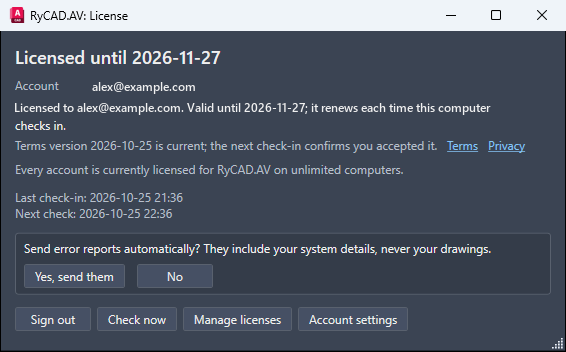
The first time you sign in, a box in the window asks once Send error reports automatically? They include your system details, never your drawings. Click Yes, send them or No. The default is off, and Report a Problem works either way. You can change it later under Settings › Project, in the part headed This computer.
The other buttons in the window:
- Sign out forgets this PC's sign-in. RyCAD.AV is in viewer mode until you sign in again.
- Check now asks the server for a fresh license straight away.
- Manage licenses and Account settings open your licenses, your computers and your account in the browser.
- Request beta access appears when the account has no beta access.
- Update RyCAD.AV appears when this build is too old for your license. It opens Updates.
What the window can say
| The top line reads | It means | What to do |
|---|---|---|
| Licensed until and a date | This PC is licensed. The date is when the license ends if the PC never goes online again. | Nothing. It renews itself whenever AutoCAD is online. |
| Not signed in | This PC has no sign-in. | Click Sign in. |
| Viewer mode | Signed in, but there is no valid license. The sentence under the line says why, for example that the account has no RyCAD.AV license. | Click Manage licenses. If the account has no beta access, click Request beta access instead. If a limit on computers is reached, the window lists it under Computers. |
| Lapsed | The license ran out, usually because the PC stayed offline too long. | Connect to the internet and click Check now. |
| Check-in needed | RyCAD.AV cannot confirm today's date on this PC, for example after the clock was set back. | Go online and click Check now. |
| Terms changed | Cooper Audio Services' terms have changed. RyCAD.AV keeps working until the license would end. | Click Sign in to read and accept them. The window links the Terms and Privacy pages. |
| Update required | This build is too old to read your license. | Click Update RyCAD.AV. |
Viewer mode
Without a valid license RyCAD.AV runs in viewer mode. It holds back what changes a project and never holds back your data.
Still works
- Opening, saving and plotting drawings, and editing them with AutoCAD's own commands.
- Moving around: the work areas, Devices › Inspector, search, trace and the Status and Drawing Health lists. They open and read, but any change they would make to the drawing is refused.
- Checking and repairing: Data › Check, Data › Reconcile and upgrading an older drawing.
- Exports to files: the VectorLabel export, definitions, the Device Listing and reports saved as files.
- Settings, the problem report, and everything on this page.
Waits for the license
- The commands that place, connect, edit, number, build, import or lay out: Work Area › Set Up, Devices › Place, Connect › Connect, Sheets › Sheets and the rest.
When you use one, the command line says so, for example AVPLACE needs a RyCAD.AV license with the reason, and tells you to run AVLICENSE. A fresh install starts in viewer mode until the first sign-in.
Working offline
- The license renews itself while the PC is online and signed in. Each renewal lasts 32 days, so a PC that goes online at least once a month never lapses.
- Nothing is checked when you open, save or plot a drawing. The license is read from the PC, so a dropped connection never interrupts work.
- If a license runs out while the PC is offline, RyCAD.AV goes into viewer mode and says so on the command line. The next time the PC is online and you click Check now (or the check runs on its own), it comes back without restarting anything.
- If the PC's clock looks as though it was set back, the license is kept for a short while and then needs one connection to the internet.
- Devices you have already used stay on the PC and keep working offline. Downloading new ones, and syncing your libraries, need the internet.
Updates
While you are signed in, RyCAD.AV looks now and then for a newer build of the edition you are running, and says so on the command line when there is one. To look straight away, click Data › Updates (or type AVUPDATES).
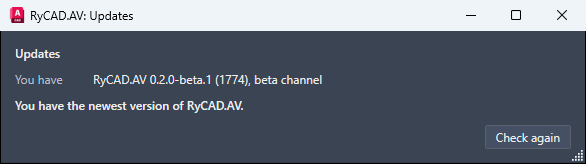
The window starts with You have the version, build and channel you run, for example RyCAD.AV 0.2.0-beta.1 (1774), beta channel. Under it is the result: You have the newest version of RyCAD.AV, or, when there is a newer one, its version, the newest your account may have, and What changed. By default RyCAD.AV also downloads the new installer in the background and checks it against Cooper Audio Services' signature. When that has worked, the window says the update is ready to install, and offers three choices:
- Click Install now to run the installer straight away. Windows may ask for permission first. AutoCAD can stay open: the new version starts the next time AutoCAD starts.
- Or click When AutoCAD closes. A small helper waits for this AutoCAD to close, then runs the installer. Windows may ask for permission then.
- Or click Later. The downloaded update stays where it is, and RyCAD.AV reminds you the next time AutoCAD starts.
Nothing installs until you choose, and a download whose signature does not check out is deleted and never run.
- Check again asks the server again. It is always there.
- If the background download is off, or has not run yet, the button reads Download update and fetches the installer when you click it. To turn the background download off, clear Download updates automatically under Settings › Project, in the part headed This computer. Then an update check only tells you that a build exists.
- If a release has no signature, the button reads Download and opens the release's page in your browser instead. You can always download the new
Setup.exefrom your account and run it yourself: it replaces the older version of the same edition. - If the window says your account has no license or no beta access, it offers the page to fix that, then Check again.
Beta and production editions
RyCAD.AV Beta and RyCAD.AV (production) are separate installs. You can have both on one PC; installing, updating or removing one never touches the other.
While RyCAD.AV is in beta, you will usually have only the beta.
| RyCAD.AV Beta | RyCAD.AV | |
|---|---|---|
| Gets updates from | the beta channel | the stable channel |
| Needs | a license and beta access | a license |
| Own settings, caches and update downloads | yes | yes |
| Shared with the other edition | your sign-in, My library, styles, logos, title blocks and drawings | |
The first time the beta starts, it copies your production settings once; after that the two sets of settings are independent.
Choosing which one starts
AutoCAD starts one edition each time. With only one installed, that is the one. With both installed, and no choice made, the production edition starts.
- Click Data › Edition (or type
AVEDITION). The command line shows which edition is running, the version of each installed edition and your saved choice. - Answer Start which edition next time with Production or Beta. Press Enter to keep the one shown as the default.
- Restart AutoCAD. The choice takes effect then.
With AutoCAD closed, run RyCAD.AV Edition from the Start menu instead. It lists the installed editions; Yes chooses RyCAD.AV, No chooses RyCAD.AV Beta, and Cancel leaves the choice as it is. If the edition you chose is not installed, AutoCAD starts the other and says so on the command line.
To see which edition you are running now, click Data › Edition (or type AVEDITION). The Updates window names the channel (beta channel for the beta), and Data › About (or AVABOUT) shows folders with Beta in their path.
If a newer RyCAD.AV, usually the beta, saved a drawing in a newer drawing format, an older edition opens its RyCAD.AV data read-only and changes nothing. Start the edition that saved it, or update. The other way round, a drawing made by an older RyCAD.AV is offered an upgrade when you open it; Data › Health › Upgrade (or AVUPGRADE) does it, and the upgraded drawing is saved under a new name, never over the original.
Cloud libraries
Click Data › Libraries (or type AVLIBRARIES) to open the Libraries window. It lists My library, your workgroups' libraries and the RyCAD library, with your role in each, when each last synced and how it stands. Click Sync now (or type AVLIBSYNC) to bring changes in and send yours out. Libraries need the same sign-in and license. Syncing can be switched off with Sync libraries with Cooper Audio Services under Settings › Project. Cloud libraries and workgroups covers what they are and how to share them.
What goes over the internet
RyCAD.AV talks to Cooper Audio Services, and to nothing else except what you start yourself:
- the sign-in, which your browser does;
- the license check: a one-way code that stands for this PC, the version, and whether it is the beta or the production edition;
- update notices, and the installer when you or the background download fetch it;
- library content;
- error reports, only when you send one or switch on automatic reports, with tokens, email addresses, your Windows user name and drawing file names taken out first;
- a manufacturer's CAD file, only when you ask the Device Builder to fetch one and say yes.
It never sends your drawings or project data. Nothing on the path of opening, saving or plotting a drawing uses the network.