RyCAD.AV is in beta. These pages describe the current beta builds, which are pre-release software: what they say may change before the first production release, and parts marked Beta are new or still being tested. Downloading the beta needs an account with RyCAD.AV beta access (ask for it here). Tell us if something here is wrong.
Most problems show in the first minute: a missing ribbon tab, a button that says Unknown command, or a command that stops with an error. Each has a short check below, and RyCAD.AV can write down what it knows so you can send it to us.
Three of the commands here, AVSTARTUP, AVLASTERROR and AVRIBBON, have no ribbon buttons. That is deliberate: you may need them when the ribbon itself is missing, so you type them at the command line. The rest have buttons on the Data panel.
Check that RyCAD.AV loaded
- Open or create a drawing. RyCAD.AV writes its start-up message once a drawing is open.
- Read AutoCAD's command line. A good start gives a line like
RyCAD.AV <version> ready: <number> commands.The version and the number of commands differ from build to build. Anything else says in plain words what failed, and ends with the path of a log file. Press F2 to see the whole command-line history. - If the drawing you opened has problems of its own, a Drawing Health summary line follows, such as 2 error(s) · 2 warning(s) · 5 notice(s) · 2 info, and the Drawing Health window opens by itself. That is about the drawing, not a sign that RyCAD.AV failed to load.
- Click Data › About (or type
AVABOUT). Its report goes into AutoCAD's command history, so press F2 (or typeTEXTSCR) to read it in full. It starts with the RyCAD.AV version and the build family, then gives the host, the .NET runtime, the settings file, the start-up log, whether the desktop UI loaded, and every part of RyCAD.AV with its version and the folder it loaded from. Desktop UI: loaded means the ribbon, palettes and dialogs started. A line starting Warning that the parts come from different builds means a mixed install: install the latestSetup.exeagain (Installing RyCAD.AV). - Type
AVSTARTUP. It checks again and tells you whether the command module loaded, how many RyCAD.AV commands AutoCAD has and which it lacks, which parts of the desktop UI started, what to do about it, and where the log is. Then it opens the log folder in Explorer.
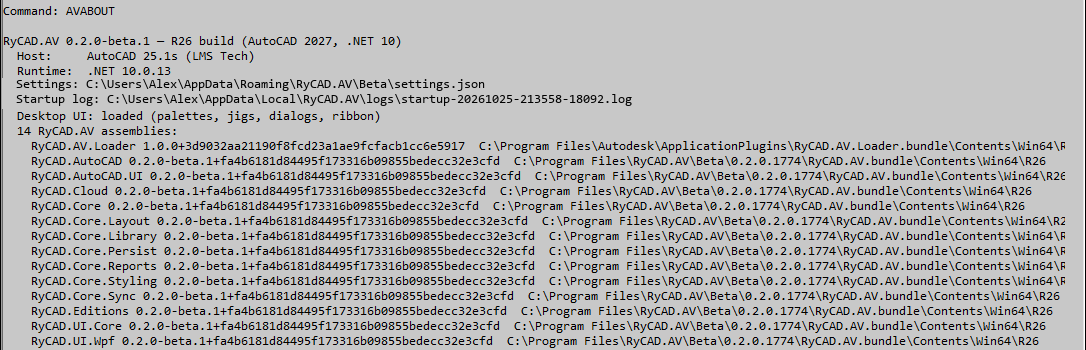
AVABOUT in AutoCAD's text window. The assemblies are in a folder below C:\Program Files\RyCAD.AV that is named for the edition (Beta or Production), and the loader is in AutoCAD's ApplicationPlugins folder.The first line looks like RyCAD.AV <version> — R26 build (AutoCAD 2027, .NET 10). The build family, R25 for .NET 8 or R26 for .NET 10, follows the .NET runtime your AutoCAD runs, not only its year. AutoCAD 2026 with its 2026.1.2 update runs .NET 10, so it loads the R26 build, and that is expected. The report lists the RyCAD.AV assemblies (14 in this build), each with its version and folder, under C:\Program Files\RyCAD.AV\<edition>\<version>\RyCAD.AV.bundle, and the loader under C:\Program Files\Autodesk\ApplicationPlugins\RyCAD.AV.Loader.bundle.
Common problems
There is no RyCAD.AV tab on the ribbon
- Check the start-up message (above). If it says RyCAD.AV is ready, the program is loaded and only the tab is missing, which happens when you switch to a workspace that does not include it.
- Type
AVRIBBON. It adds the RyCAD.AV tab again. It works in the desktop AutoCAD only. - If
AVRIBBONsays Unknown command, RyCAD.AV did not load at all; go to the next problem.
A missing tab is not a failure if the commands work: you can type any of them.
A button says Unknown command, or does nothing
This means AutoCAD does not have RyCAD.AV's commands, so RyCAD.AV did not load. A button never sends AutoCAD a command it does not have: it shows a dialog with the reason, and with no drawing open it asks you to open one.
- Type
AVSTARTUPand read what it says. It names what did not load and what to do. - Check that you run AutoCAD 2025, 2026 or 2027 for Windows. Older releases do not load RyCAD.AV, and nothing says so.
- Close AutoCAD and start it again. AutoCAD reads its plug-ins only when it starts, so a fresh install does not show until then.
- Run the installer again, and check that your antivirus has not removed or quarantined any file in
C:\Program Files\RyCAD.AVorC:\Program Files\Autodesk\ApplicationPlugins\RyCAD.AV.Loader.bundle. - Look for a second copy: a
RyCAD.AV.bundlefolder that someone copied intoC:\Program Files\Autodesk\ApplicationPluginsor%APPDATA%\Autodesk\ApplicationPluginsloads beside the installed one. Delete it, close AutoCAD and start it again. - If
AVSTARTUPalso says Unknown command, paste%LOCALAPPDATA%\RyCAD.AV\logsinto Explorer's address bar and send the newest file in it with your report (below).
A command stopped with an error
When a RyCAD.AV command, window or palette fails, you do not get AutoCAD's exception dialog. The command line shows one line instead, such as AVPLACE stopped with an error and the kind of error, ending Run AVLASTERROR to show and copy them, then offers Send this to Cooper Audio Services: AVREPORTPROBLEM. With no drawing open, a dialog says the same.
The step that failed is rolled back. Steps that the command had already finished stay in the drawing, and U undoes them.
- Type
AVLASTERROR. It prints the full record: when and what failed, the RyCAD.AV build, the AutoCAD release, the runtime and processor, the drawing's file name and the whole error. It also copies the record to the clipboard. - Paste it into your report. Or send the file
%LOCALAPPDATA%\RyCAD.AV\logs\errors.log, which holds every such error from every AutoCAD session.
The record writes your Windows user folder as %USERPROFILE%, but the drawing's file name and the error text are written as they are, and the text can contain device names. Read it before you send it.
A command says it needs a RyCAD.AV license
RyCAD.AV is in viewer mode: this PC is not signed in, or its license has lapsed. Click Data › License (or type AVLICENSE) and follow the window. Viewer mode says what still works.
AutoCAD asks whether to load a RyCAD.AV file
RyCAD.AV is installed in C:\Program Files, which AutoCAD trusts, so it should not ask. If a security question does name a RyCAD.AV file, such as RyCAD.AutoCAD.dll, RyCAD.AutoCAD.UI.dll or RyCAD.AV.Loader.dll, choose Always Load and restart AutoCAD. If you choose Do not load, RyCAD.AV is not there, and every button says Unknown command.
If your company has locked AutoCAD to trusted folders only, ask whoever manages your AutoCAD to trust C:\Program Files\RyCAD.AV and the loader folder above. Do not turn the security setting off for this: it protects every plug-in.
A window or some text is cut off
Report it, and say your display scaling (in Windows, Start › Settings › System › Display, Scale).
Reporting a problem
Every report becomes a ticket with a number that you can follow under My tickets in your account. Say which version you run: the first line of Data › About, and the build number in brackets in the Data › Updates window. For the current beta these are RyCAD.AV 0.2.0-beta.1 and (1774).
From inside AutoCAD
- Click Data › Report a Problem (or type
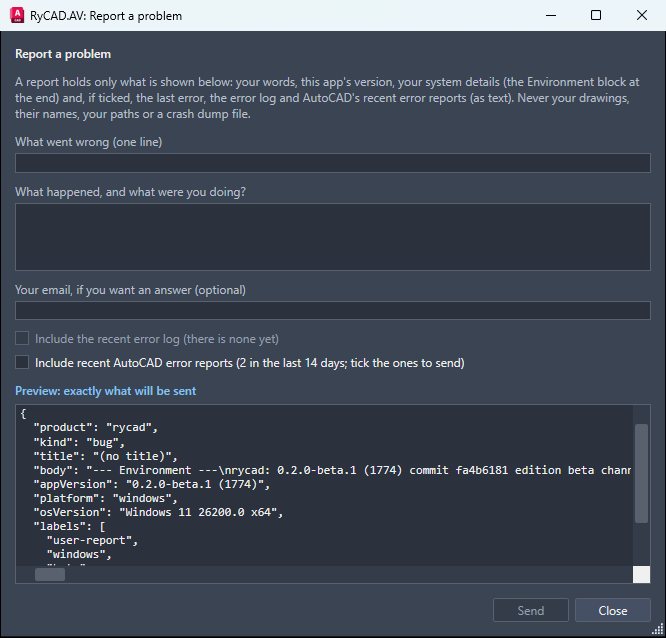
AVREPORTPROBLEM). The RyCAD.AV: Report a problem window opens. After a command fails, it opens with that error already filled in. - Type a one-line title under What went wrong (one line), and below it say what happened and what you were doing. Add your email address under Your email, if you want an answer (optional) if you want a reply.
- Tick what to include: Include the recent error log, Include recent AutoCAD error reports (the time, the error and the module it failed in, as text; never the crash dump) and, after a failed command, Include the last error.
- Read Preview: exactly what will be sent. It is what Send posts, as text: your words, the RyCAD.AV version and details of your system, such as the AutoCAD release, Windows, the display, the license state, and the last 20 RyCAD.AV commands with whether they worked. Tokens, email addresses, your Windows user name and drawing file names are taken out first. It never contains your drawing.
- Click Send. When it has gone, Open report opens the report's page in your browser. If the server cannot be reached, the report is kept for 24 hours and sent when RyCAD.AV is online. Close leaves the window without sending.
RyCAD.AV can also send reports of errors and of AutoCAD crashes by itself, without asking. Automatic reports of RyCAD.AV's own errors are off until you switch them on; the License window asks once when you first sign in. Both are under Settings › Project, in the part headed This computer.
Reports of AutoCAD crashes are on by default in the beta.
A problem report file
For a problem that a short message cannot explain, write a problem report.
- Click Data › Problem Report (or type
AVDIAG). - In the Save the RyCAD.AV problem report window, choose where to save the zip. It suggests your Documents folder and a name starting RyCAD.AV-problem-report.
- Explorer shows the file. Nothing has been sent. Look through it, then attach it to your report.
The zip holds the RyCAD.AV and AutoCAD versions, the parts that were loaded, your settings without anything that looks like a credential, a summary of the drawing by counts and codes (never its name, devices or text), its layers against the standard, the last 200 command-line messages, this session's start-up log and the error log. The error log is the one part that names drawing files and quotes errors word for word, so it can mention devices, files and folders.
Afterwards the command offers, only when something differs, to bring the drawing's RyCAD.AV layer filters up to date and to restore the system variables of the template. Both stay as they are unless you answer Yes.
Feedback and requests
Click Data › Feedback (or type AVFEEDBACK) to open the feedback form in your browser. You sign in there. Use it for questions, ideas and anything that is not an error. Say the build you run, and what you were trying to do.
What helps us most
- The version, from Data › About, and the build number, from Data › Updates, and the AutoCAD release and update, from AutoCAD's own
ABOUTcommand. - What you did, step by step, and what you expected.
- The record from
AVLASTERROR, if a command stopped. - The problem report, if the cause is not clear.
- The drawing, if you can share it.
- For a program that does not load at all: the newest file in
%LOCALAPPDATA%\RyCAD.AV\logs, and AutoCAD's command-line history (F2).
Where the logs are
Paste %LOCALAPPDATA%\RyCAD.AV\logs into Explorer's address bar. It holds one start-up log for each AutoCAD session (the last ten are kept) and errors.log. The beta and the production edition share it. AVSTARTUP opens the folder for you.