RyCAD.AV is in beta. These pages describe the current beta builds, which are pre-release software: what they say may change before the first production release, and parts marked Beta are new or still being tested. Downloading the beta needs an account with RyCAD.AV beta access (ask for it here). Tell us if something here is wrong.
RyCAD.AV doesn't print labels itself. It writes a file of your circuits into the folder VectorLabel watches, and VectorLabel prints two labels for every circuit, one for each end.
This page covers the export, where the file goes, what the command line tells you afterwards, and how to reach VectorLabel's folder from Windows. How VectorLabel designs and prints the labels is in VectorLabel's own guide.
To export labels
- To export only some circuits, select their lines or their label text in the drawing first. To export every circuit, select nothing.
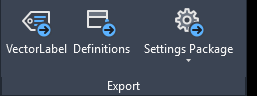
- Click Export › VectorLabel (or type
AVEXPORTVL). - The command line asks which circuits to export. Press Enter to take the choice shown in angle brackets: Selection if you selected circuits first, otherwise Drawing. Or type
Drawing(every circuit) orSelection. If you chooseSelectionand nothing is selected, you are asked to pick circuits. Devices you pick are skipped and counted, because only circuit lines and their labels name a circuit. - Read the result on the command line (press F2 for the whole text). A notification from RyCAD.AV's icon in the Windows notification area says the same in short and closes by itself after about five seconds.
If this computer has no Watch Folder yet, RyCAD.AV opens Settings › VectorLabel and exports nothing. Set the folder as described next, then start again from step 2.
To set the Watch Folder
The Watch Folder is the folder VectorLabel's Auto Print watches. You tell RyCAD.AV where it is once for each computer. Which path to enter depends on where VectorLabel runs: see Reaching VectorLabel from Windows.
- Click Work Area › Settings (or type
AVSETTINGS) and choose VectorLabel in the list on the left. TypingAVVLSETTINGSopens the window straight on this pane. - Under This computer, type the folder in VectorLabel watch folder, or click Browse…. Press Enter or click out of the box to keep it. Under the box, help text names the two usual choices: the Mac's shared VectorLabel folder from a PC, and the VM's shared folder in a Windows VM on the Mac. Once you have entered a folder, the line says what kind of folder RyCAD.AV takes it for, for example a Parallels shared folder or a network share, and what has to stay running.
- Click Test connection. RyCAD.AV writes a small test file into the folder's Exports folder, reads it back, deletes it and tells you how long that took. A test cannot tell you whether Auto Print is running.
- Choose the Profile: Profile A+ (the default) or Profile A. See Profile A or A+.
- Optional: under This drawing, type a name in Project subfolder under Exports. Left empty, the drawing's file name is used.
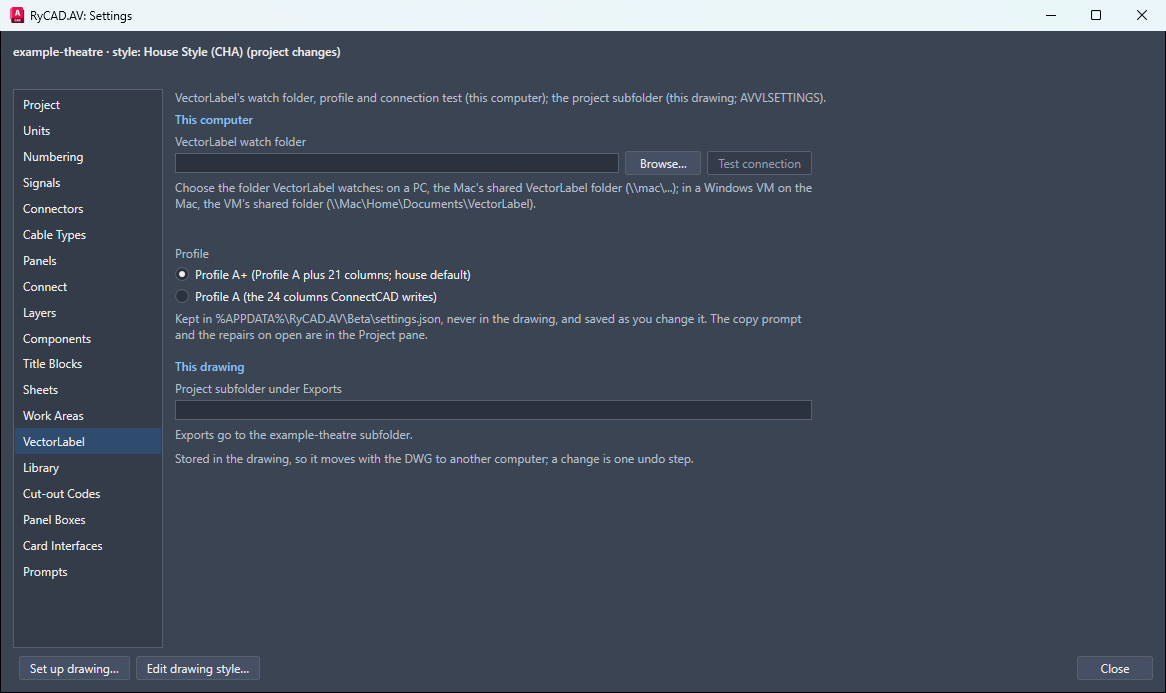
The note under the profiles names the file these settings are kept in, %APPDATA%\RyCAD.AV\Beta\settings.json for RyCAD.AV Beta, and says that the copy prompt and the repairs on open are in Settings › Project.
Every change is saved as you make it. RyCAD.AV never creates the Watch Folder itself: a folder that is missing usually means a share that isn't connected, or a typing mistake. The watch folder and the profile belong to this computer and are never stored in the drawing. The project subfolder is stored in the drawing, so it goes with the file to another computer.
Where the file goes
Each export is one CSV file in a folder named after the drawing:
<Watch Folder>\Exports\<drawing>\<drawing>_export_<yyyyMMdd>_<HHmmss>.csv
For a drawing called EXAMPLE THEATRE.dwg that is Exports\EXAMPLE THEATRE\EXAMPLE THEATRE_export_20261025_140322.csv. If you set a Project subfolder under Exports, that name is used instead of the drawing's.
- VectorLabel never reads half a file. RyCAD.AV writes the file under a temporary name ending in .part and renames it only when it is complete.
- Nothing is overwritten. The date and time are in the file name. If that name is taken, a second is added.
- Old exports are cleared. RyCAD.AV keeps the newest 15 exports in the drawing's folder and removes the older ones. The command line says how many it removed.
- A drawing that was never saved exports into a folder named after the drawing, such as Drawing1, and lists a warning. Save the drawing, or set a project subfolder, to export under a proper name.
If the folder can't be reached
If the Watch Folder is missing, a share is disconnected, or the file can't be written there (for example because the full path is longer than 259 characters), nothing reaches VectorLabel. The command line says Not delivered, gives the reason and gives the place where RyCAD.AV kept the file: the outbox, in %LOCALAPPDATA%\RyCAD.AV\VectorLabelOutbox\<drawing>. The RyCAD.AV Beta edition uses %LOCALAPPDATA%\RyCAD.AV\Beta\VectorLabelOutbox\<drawing> instead.
Nothing retries by itself, so a print window never appears on the Mac hours later. When the folder is reachable again, export again. Or copy the file from the outbox into Exports\<drawing> in the Watch Folder yourself, keeping its name.
When something is missing
The export is never blocked. If information is missing, RyCAD.AV exports without it and lists what it left out on the command line, after the summary and the path. The notification gives only the count. Fix the cause and export again to fill the gap.
| What the command line says | What was written | What to do |
|---|---|---|
A device has no name (EXP001) | The name <DEVICE> | Name the device in the Inspector. |
A circuit is only half wired, or an end is not on a socket (EXP002) | Both rows, with the missing end's columns empty | Finish the circuit, or delete it. |
A circuit has an unknown signal (EXP003) | ??? as the signal | Give the circuit a signal. See Connecting devices. |
The drawing was edited without RyCAD.AV and not reconciled yet (EXP004) | RyCAD.AV's own values, not the edited ones | Click Data › Reconcile (or type AVRECONCILE). See When the drawing comes back. |
The drawing was never saved (EXP005) | A folder named after the drawing, such as Drawing1 | Save the drawing. |
There are no circuits in the scope (EXP006) | A file with only the header row | Check the selection, or choose Drawing. |
A value had stray spaces or control characters (EXP008) | The value, cleaned | Nothing; the warning only tells you. |
To find problems before you export, click Data › Check (or type AVCHECK). The same findings are explained in Checking and numbering. Rename a device and export again, and every label follows the new name, because RyCAD.AV links by identity and not by name.
Profile A or A+
The profile decides which columns the file has.
- Profile A has the 24 columns that ConnectCAD's export writes, byte for byte. Your existing VectorLabel templates, column layouts and filters work with it unchanged.
- Profile A+ (the default) has the same 24 columns, untouched, and 21 more at the right: identifiers, the cable type, the far end's details and ready-made label lines. Your existing templates work with it too. VectorLabel shows the extra columns in its record table and lets you use them by name in a template.
Choose the profile in Settings › VectorLabel. For one export only, type Profile at the question in step 3 of To export labels and then A or APlus.
Reaching VectorLabel from Windows
VectorLabel runs on the Mac today, and RyCAD.AV runs on Windows. The export therefore has to reach the folder the Mac watches. Whatever the route, the file is the same; only the Watch Folder you enter in RyCAD.AV differs. Enter the folder as Windows sees it: it is VectorLabel's Watch Folder, not its Exports folder.
Windows in a VM on the Mac that runs VectorLabel
Share the Mac's Watch Folder into the VM. VectorLabel's default Watch Folder is ~/Documents/VectorLabel.
- Parallels Desktop: in the VM's configuration, open Options, then Sharing, and share Mac folders with Windows (your home folder, or a folder that holds the Watch Folder). Enter \\Mac\Home\Documents\VectorLabel.
- VMware Fusion: in the virtual machine's settings, under Sharing, turn on shared folders and add the Watch Folder, or its parent. Enter \\vmware-host\Shared Folders\<share name>\VectorLabel.
Menu names differ between versions of both products. A drive letter mapped to the same share works too.
A separate Windows PC
Turn on file sharing on the Mac (System Settings › General › Sharing › File Sharing) and share the Watch Folder. In RyCAD.AV enter \\<Mac name>.local\VectorLabel. Windows asks for the Mac user's name and password. RyCAD.AV stores no credentials, so let Windows keep them in Credential Manager. The Mac has to stay awake with file sharing on.
A synced folder
If the PC and the Mac share a folder through a sync service such as OneDrive or Dropbox, set VectorLabel's Watch Folder to the Mac's copy and enter the PC's copy in RyCAD.AV. Files arrive after the sync delay, from seconds to minutes. On the Mac, set the folder to Always keep on this device, or an export may not open.
VectorLabel on Windows
There is no Windows version of VectorLabel yet. When there is one, enter the local folder it watches.
Keep Auto Print running
Auto Print notices a file only while it is running. A file that lands while it is closed is not printed when it opens, so start Auto Print before you export. In all of these setups the Mac must be on and Auto Print must be running.
It is not yet confirmed that Auto Print notices a file renamed into the folder through each VM's file sharing. If a file appears in Exports but nothing prints, print it from VectorLabel by hand. Then tell us which VM product and version you use.
More options and good to know
- Profile B. Typing
ProfilethenBat the question in step 3 writes the A+ columns plus 30 more: identifiers, locations, the cable and the label colour. RyCAD.AV then asks which views to write.CircuitEndsis the default;Alladds lists of cables, devices, assets, panel ports and panel strips, each in its own folder next to the drawing's. Profile B stays chosen for the rest of the AutoCAD session unless you chooseAorAPlusagain. Most people never need it. - Without a license. Export keeps working when RyCAD.AV has no license (viewer mode). See License, updates and editions.
- Colleagues on a Mac. RyCAD.AV Lite adds an export command to AutoCAD for Mac and LT. See RyCAD.AV Lite.
- Where the settings live. The watch folder and profile are in %APPDATA%\RyCAD.AV\settings.json (%APPDATA%\RyCAD.AV\Beta\settings.json for the RyCAD.AV Beta edition), which you never need to edit by hand.
The export, the checks and the file writing are tested, and the CSV is compared byte for byte with a sample of ConnectCAD's. Printing the result in VectorLabel through a VM's shared folder or a Mac's file sharing is the part still being confirmed. If you try either setup, tell us how it went, whether or not it worked.