RyCAD.AV is in beta. These pages describe the current beta builds, which are pre-release software: what they say may change before the first production release, and parts marked Beta are new or still being tested. Downloading the beta needs an account with RyCAD.AV beta access (ask for it here). Tell us if something here is wrong.
Every device you place comes from a library and is copied into the drawing when you place it. After that the drawing carries its own copy, so it opens, plots and edits without the library, and nothing changes in it until you say so.
Where devices come from
RyCAD.AV looks for a device in several places, in this order. If the same device is in more than one, the earlier one in the list is the one you get.
| Library | What it is |
|---|---|
| This drawing | The definitions the drawing already holds. A device you placed earlier is here, and so is a definition you edited only in this drawing, or placed with Place (project only). The Library palette labels these Project. |
| My library | Your own devices: a folder on your computer, which the Device Builder saves to. When you are signed in it is kept in step with My library in your account. You set its folder in Settings › Library. |
| A workgroup folder | Devices shared with a team. It is a folder you add in Settings › Library (a network share, a synced folder or a folder on this computer), or a workgroup library from your account, which arrives on your computer as a folder of its own. With several, the one listed last wins. |
| The RyCAD library | The library we publish: the stock devices and their drawings. It lives in the cloud and is downloaded as you need it. You cannot change it, but you can copy a device to My library and edit the copy. |
| The application library | The stock devices installed with RyCAD.AV. It is read-only, and it works with no internet. |
The cloud side (My library and workgroup libraries in your account, and who can see what) is explained in Cloud libraries and workgroups. If you edit a stock device in the Device Builder, the edit is saved in your own library as a copy that remembers the device it came from, and your copy is the one you get from then on. See Making your own devices.
The Library palette
The Library palette is the place to browse, preview and place devices.
- Click Devices › Library (or type
AVLIBRARY). - Type in the search box. It looks at make, model, category, default name, description and aliases, and every word must match.
- Choose Sort by: Category (Group, then Type, then Make-Model; the default) or Make. Use Library ▾ to show one library, and Favorites only to narrow the list. Favorites and Recent are at the top of the list. A line under the filters counts what is shown, for example 4508 definition(s) from Project, User, Workgroup, Application.
- Select a device. Its card shows a preview with tabs for Schematic and 3D (and Front & rear when the device has panel artwork), a Dark tick for the preview background, and a details line with its category, kind, version and the library it comes from, such as Version 1.0.2 from RyCAD library. Wheel to zoom, drag to pan and double-click to fit.
- Click Place, double-click the device, or drag it into the drawing. Placing is covered in Placing devices.
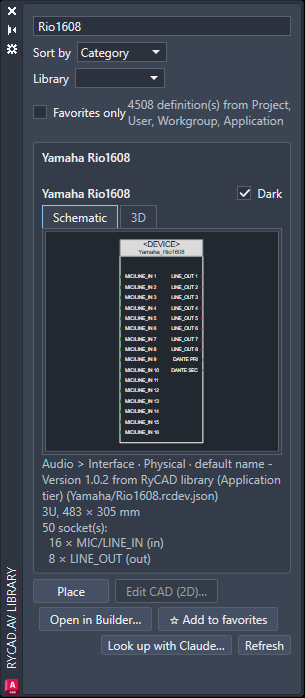
The buttons under the card are Place, Edit CAD (2D)… (its front and rear artwork), Open in Builder… (edit the selected device or option card), ☆ Add to favorites, Look up with Claude… (for a device that is not in any library; see Look up a device with Claude) and Refresh (read the library folders again). At the bottom a status line such as Libraries up to date sits beside Sync now.
A device still in the RyCAD library is shown with a cloud icon and previewed without being downloaded. For such a device the palette also offers Make available offline, which downloads it now so you can place and preview it with no connection.
Badges beside a device say which library it is from (Project, My library, a workgroup's name or RyCAD library) and how it compares with the drawing (in this drawing, library newer, deprecated).
The Libraries window
The Libraries window shows how each of your cloud libraries stands, and is where you sync them.
- Click Data › Libraries (or type
AVLIBRARIES). - The window RyCAD.AV: Libraries opens with a summary line such as Libraries up to date and, beside it, Signed in as your email address.
- Read the table: one row each for My library (Type My library, Role owner), your workgroup libraries (Type Workgroup) and the RyCAD library (Type Default), with the Last sync and the Status of each. A status is one of up to date, syncing, offline, signed out, no license, terms changed, or a count of conflicts. Select a row for a sentence about it, such as Up to date. Kept in C:\Users\Alex Example\AppData\Roaming\RyCAD.AV\Library.
- Click Sync now to pull what changed in your libraries and push what you changed here (or type
AVLIBSYNC, which runs the same sync in the background and reports on the command line when it is done). - If a library cannot sync, a link beside the list fixes the cause: Manage licenses, Request beta access, License and sign-in…, Review the terms or Check for updates….
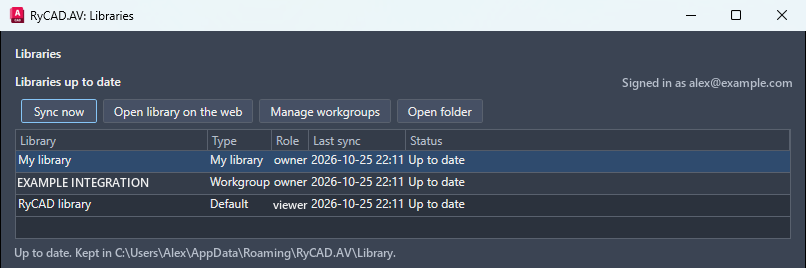
The other buttons: Open library on the web and Manage workgroups open your account on the website (see Workgroups), and Open folder opens the selected library's folder on this computer. If syncing is switched off, the window says so and offers Open Settings.
Newer versions of the RyCAD library
When devices in the RyCAD library have new versions, the window says how many (for example 3 items have newer versions). Click Download all, or Choose…, tick the ones you want and click Download selected. Downloading replaces the copies on your computer. It does not change any drawing; see the next section.
Conflicts
If you and the server both changed the same item, both versions are kept: the server's takes the file name and yours is saved beside it as a copy. The window lists them under Conflicts, each with Open folder. Compare the two files and delete the one you do not want.
Turning sync off
Syncing is on by default. To stop it, untick Sync libraries with Cooper Audio Services in Settings › Project. Your libraries then stay on this computer exactly as they are, and the Libraries window says so. License checks and update checks carry on. The same pane has an RyCAD library choice, Stable or Beta. Beta needs beta access on your account, and without it you get the stable library. To sign in, see License, updates and editions.
Library folders
Click Work Area › Settings (or type AVSETTINGS) and open Settings › Library. User folder is where My library lives on this computer; leave it empty for the default, or click Browse…. Under Workgroup folders, type or browse to a folder and click Add; use Up, Down and Remove to order them. Folders listed last win. A change reaches the Library palette and Place at once.
Keeping a drawing's devices current
A drawing keeps the version of each device it was placed with, so all the devices of one kind in a drawing stay alike. When the library has a newer version, the palette says library newer and nothing else happens until you update.
See where things stand
Click Devices › Library Status (or type AVLIBSTATUS). The window lists every definition in the drawing, with how many devices use it and how it compares with your library: same as library, newer in library, modified in drawing, both changed or in no library. Select one to see where it is used and click Zoom to to go to it. From here you can click Update or Update all, Purge unused… or Open in Builder.
Update devices from the library
- Select the devices to update, or select nothing to look at the whole drawing. Click Devices › Update from Library (or type
AVUPDATEDEVICES). - The window lists the socket mapping. Sockets are matched by identity first, then by name, then by direction, signal and connector. It also lists the circuits that would lose their socket. Change any row of the mapping, and tick Delete these circuits instead of keeping them detached if you want them gone.
- Click Apply. The definitions are replaced, the devices redrawn and the circuits moved to their sockets, as one undo step. Socket changes you made on a single device are kept.
The Library Manager
Click Devices › Library Manager (or type AVLIBDIFF) to compare the drawing's definitions with the library, definition by definition. Each is identical, library newer, drawing edited, both changed, pinned or in no library; an override you made of a stock device can also be upstream changed. Select a definition to see the field and socket changes, previews of the drawing's and the library's versions, the circuits that taking the library's version would affect, and where it is used.
- Update drawing takes the library's version.
- Keep drawing version pins the drawing's copy, so the library's version stops showing as newer. Unpin undoes it.
- Push to library saves the drawing's version to your library as a new version.
- Merge, when both changed, takes each section (data, sockets, schematic, each piece of artwork) from the side you choose, saves the result and updates the drawing. Merge upstream brings a newer stock version into your override.
- Open in Builder, Edit CAD (2D)… and Edit CAD… edit the definition or its artwork.
- To act on many at once, Tick attention, then Update ticked, Keep ticked or Push ticked.
Push a drawing's edits to the library
If you changed a device's definition in the drawing (sockets, symbol or artwork) and want every drawing to have it, click Devices › Push to Library (or type AVLIBPUSH), then pick a device or equipment item. Choose My library or a workgroup library if asked. The edit is checked first, and it is saved as a new version; the command line shows the version change, for example 1.0.0 → 1.0.1. A device from a read-only library becomes an override in yours.
If the library's copy has changed since the drawing took it, you can save the drawing's version as a new version anyway or cancel; nothing is overwritten silently. Use the Library Manager to merge section by section. Library files are not undone by U.
Replace a device with another model
Select the devices, then click Devices › Replace Device (or type AVREPLACEDEVICE) and search the library for the new model. The devices keep their names, tags, locations and data. A grid shows how sockets map; you can change any row, and circuits that would lose their socket are listed first.
Purge unused definitions
Click Devices › Purge Definitions (or type AVLIBPURGE). The window lists the definitions no device uses, with their blocks, and removes them when you click Purge. A definition whose edits are in no library is removed only if you tick it. Placing the device again brings its definition back.
Exporting definitions and settings
Definitions
Click Export › Definitions (or type AVDEFEXPORT). It exports the definitions of the selected devices, or every definition the drawing holds. Choose the format at the command line: Csv (the default: one file of definitions and one of sockets), Json (one RyCAD.AV device package per definition, into a folder), ConnectCad (ConnectCAD's device JSON) or Markdown (a curated list). Then give the file or folder. Values nobody knows stay empty, never zero.
Settings packages
A settings package carries a drawing's settings to another drawing: project settings (naming, device and circuit defaults, rack conventions, units, grid, check rules and the active numbering scheme), the catalogues of signals, connectors, cable types and so on, the numbering schemes without the numbers used, user-field declarations, and this computer's library folders.
- In the drawing that has the settings, click Export › Settings Package (or type
AVSETTINGSEXPORT) and choose where to save the file. - In the other drawing, click Export › Settings Package › Import Settings (or type
AVSETTINGSIMPORT) and choose the file. - RyCAD.AV lists what it would add, replace and keep. Entries are matched by id, then by name. Where the drawing has an entry that differs, it keeps its own unless you choose
Replace. If the package names different library folders,Libraryalso points this computer at them. Press Enter to apply it, as one undo step.