RyCAD.AV is in beta. These pages describe the current beta builds, which are pre-release software: what they say may change before the first production release, and parts marked Beta are new or still being tested. Downloading the beta needs an account with RyCAD.AV beta access (ask for it here). Tell us if something here is wrong.
RyCAD.AV comes as one Windows installer and needs no setup inside AutoCAD. This page takes you from the download to the first start and the sign-in.
The current beta is v0.2.0-beta.1, build 0.2.0.1774. The overview says what is new and what is known not to work yet.
What you need
- Windows 10 or 11, 64-bit.
- AutoCAD 2025, 2026 or 2027 for Windows, or a program built on one of them (AutoCAD Electrical, MEP, Architecture, Plant 3D, Map 3D or Civil 3D).
- A Cooper Audio Services account with a RyCAD.AV license. The same account gives you the download. For the beta it also needs RyCAD.AV beta access, which you can request here.
- Permission to install programs. The installer sets RyCAD.AV up for everyone who uses the PC, so Windows may ask for an administrator's permission.
- An internet connection for the sign-in, and to keep the license current. After that, RyCAD.AV works offline for a month at a time (Working offline).
RyCAD.AV has been run in AutoCAD 2026. The versions for AutoCAD 2025 and 2027 are built but have not been run yet, and neither have the programs built on AutoCAD. If you use one of those, tell us how it went, whether or not it worked.
AutoCAD LT, AutoCAD for Mac and AutoCAD 2024 or older cannot run RyCAD.AV, but they open, edit and plot its drawings exactly as drawn. Sharing drawings with people who don't have RyCAD.AV explains what they can do.
Get the installer
- Sign in to your Cooper Audio Services account. If you need help with the account itself, see the account help.
- If your account does not have RyCAD.AV beta access yet, request it first. The builds are not listed until it is granted.
- Open the Downloads page and find the RyCAD.AV builds.
- Download the RyCAD.AV installer, the file that ends in
-Setup.exe. The current beta isRyCAD.AV-Beta-0.2.0.1774-Setup.exe. IT departments that deploy with their own tools can get the same installer as an.msi, from the For IT line at the bottom of the Downloads page; RyCAD.AV also uses the.msifor its own updates. Use the.exe.
The installer is signed by Ryan Cooper. To check, right-click the downloaded file, choose Properties, and look for the Digital Signatures tab.
Install it
- Close AutoCAD. It keeps the program's files open while it runs.
- Double-click the
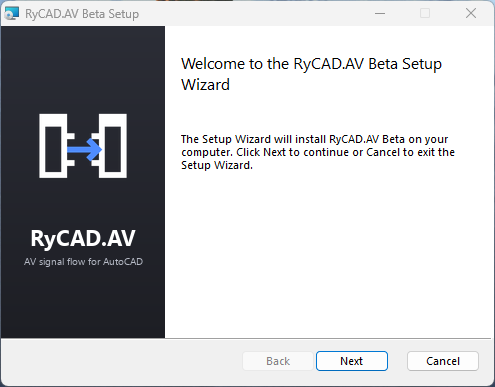
Setup.exefile. If Windows shows a blue Windows protected your PC window, see If Windows SmartScreen warns you. - The first page is the installer's welcome page. Click Next.
- On the Ready to install page, click Install.
- Windows may ask for permission to make changes to the PC. If it does, click Yes.
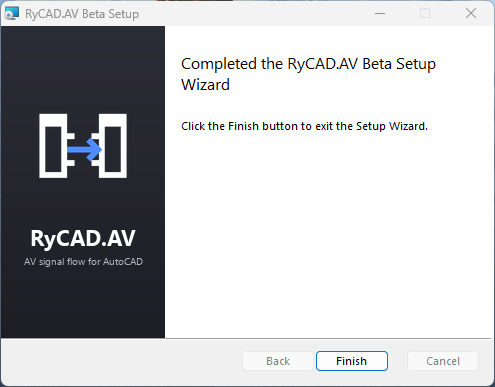
- Wait while the installer's progress page runs. It takes only seconds. When the last page appears, click Finish.
If Windows SmartScreen warns you
Windows trusts a new publisher or a new file only after enough people have run it, so a freshly signed installer may still show Windows protected your PC. If you downloaded the file from your own account, click More info and check that the publisher is Ryan Cooper, then click Run anyway. If the publisher is missing or is someone else, do not run the file; tell us.
What the installer does
- It puts RyCAD.AV in
C:\Program Files\RyCAD.AV, a folder for each version. - It adds a small loader to AutoCAD's plug-in folder,
C:\Program Files\Autodesk\ApplicationPlugins\RyCAD.AV.Loader.bundle. AutoCAD starts the loader, and the loader starts RyCAD.AV. - It adds RyCAD.AV Edition to the Start menu (see Beta and production editions).
- It never touches your drawings, your settings or your library.
Installing a newer build over an older one replaces it; there is nothing to uninstall first. Each version goes in a folder of its own, so an update that RyCAD.AV installs for you can run with AutoCAD open: the new version starts the next time AutoCAD starts.
Earlier test builds of RyCAD.AV that were installed the older way, listed as RyCAD.AV in Windows' installed apps, are replaced the same way.
The first start
- Start AutoCAD and open or create a drawing. If AutoCAD shows its Start tab, click New or type
NEW. RyCAD.AV writes its first message once a drawing is open. - Read the command line. A good start gives a line like
RyCAD.AV <version> ready: <number> commands.; the version and the number of commands differ from build to build. Anything else says in plain words what failed and ends with the path of a log file. Fixing and reporting problems goes through it. If the drawing you opened has problems of its own, a Drawing Health summary line follows, such as 2 error(s) · 2 warning(s) · 5 notice(s) · 2 info, and the Drawing Health window opens by itself. That is about the drawing, not about the install. - Look for the RyCAD.AV tab on AutoCAD's ribbon. If it is missing, see There is no RyCAD.AV tab.
- Click Data › About (or type
AVABOUT). It prints the version, which build family is loaded, where each part was loaded from and a line that should read Desktop UI: loaded. Press F2 (or typeTEXTSCR) to read all of it. Say the version when you report a problem. - Sign in so that RyCAD.AV can license this PC. Click Data › License (or type
AVLICENSE), then Sign in. Your browser opens, you sign in to your account and click Connect, and the License window reads Licensed until and a date. Signing in has the steps. On a PC that is not signed in yet, the License window opens by itself the first time.

Without a license, RyCAD.AV runs in viewer mode. Your drawings open, save and plot as usual, but the commands that place, connect or change things wait. Viewer mode lists what still works.
The installer carries RyCAD.AV's catalogues, not the library of devices. Devices download when you place or preview them, so the Library palette is empty on a PC that has not signed in. Sign in, and it fills. Cloud libraries and workgroups explains the libraries.
When the License window reads Licensed until, go on to Your first drawing.
Beta and production editions
RyCAD.AV Beta and RyCAD.AV (the production version) are two separate installs, and you can have both on one PC. Installing or updating one never removes the other. Each keeps its own settings and its own update downloads; they share your sign-in, your library, your styles and your drawings.
While RyCAD.AV is in beta you will usually have only the beta.
AutoCAD starts one of them. With both installed and no choice made, the production version starts. To choose, click Data › Edition (or type AVEDITION). It lists what is installed and asks which to start next time; the choice takes effect when AutoCAD restarts. With AutoCAD closed, run RyCAD.AV Edition from the Start menu instead. License, updates and editions has the details.
Uninstalling
- Close AutoCAD.
- Open Start › Settings › Apps, then Installed apps.
- Find RyCAD.AV or RyCAD.AV Beta, click the three dots beside it, and choose Uninstall.
Uninstalling removes the program. It keeps your drawings, your settings, your library and your downloads, and the loader and the Start menu tool stay while the other version is installed. To remove those as well, delete the RyCAD.AV folders in %APPDATA% and %LOCALAPPDATA%. Your own library is in the first one, in %APPDATA%\RyCAD.AV\Library, so check that you do not need it first. Drawings keep their RyCAD.AV data, and look and plot the same without the program.
Good to know
- The installer stops and says a copied RyCAD.AV.bundle is already in the plug-in folder. An earlier test build was copied there by hand, and AutoCAD would load it beside the new one. Close AutoCAD, delete that
RyCAD.AV.bundlefolder fromC:\Program Files\Autodesk\ApplicationPlugins, and run the installer again. - Repairing an install. Windows' installed apps offers only Uninstall for RyCAD.AV. To repair it, close AutoCAD, run the same installer again and choose Repair.
- Installing on many PCs. Download the
.msifrom the For IT line at the bottom of the Downloads page, and run it silently withmsiexec /i <the .msi file> /qn, with AutoCAD closed. For the current beta that ismsiexec /i RyCAD.AV-Beta-0.2.0.1774-Setup.msi /qn. - Updates. After the first install, RyCAD.AV finds and installs newer builds itself, when you say so. See Updates.
- What goes over the internet. The sign-in, the license, update notices and library content, and nothing from your drawings. See What goes over the internet.